
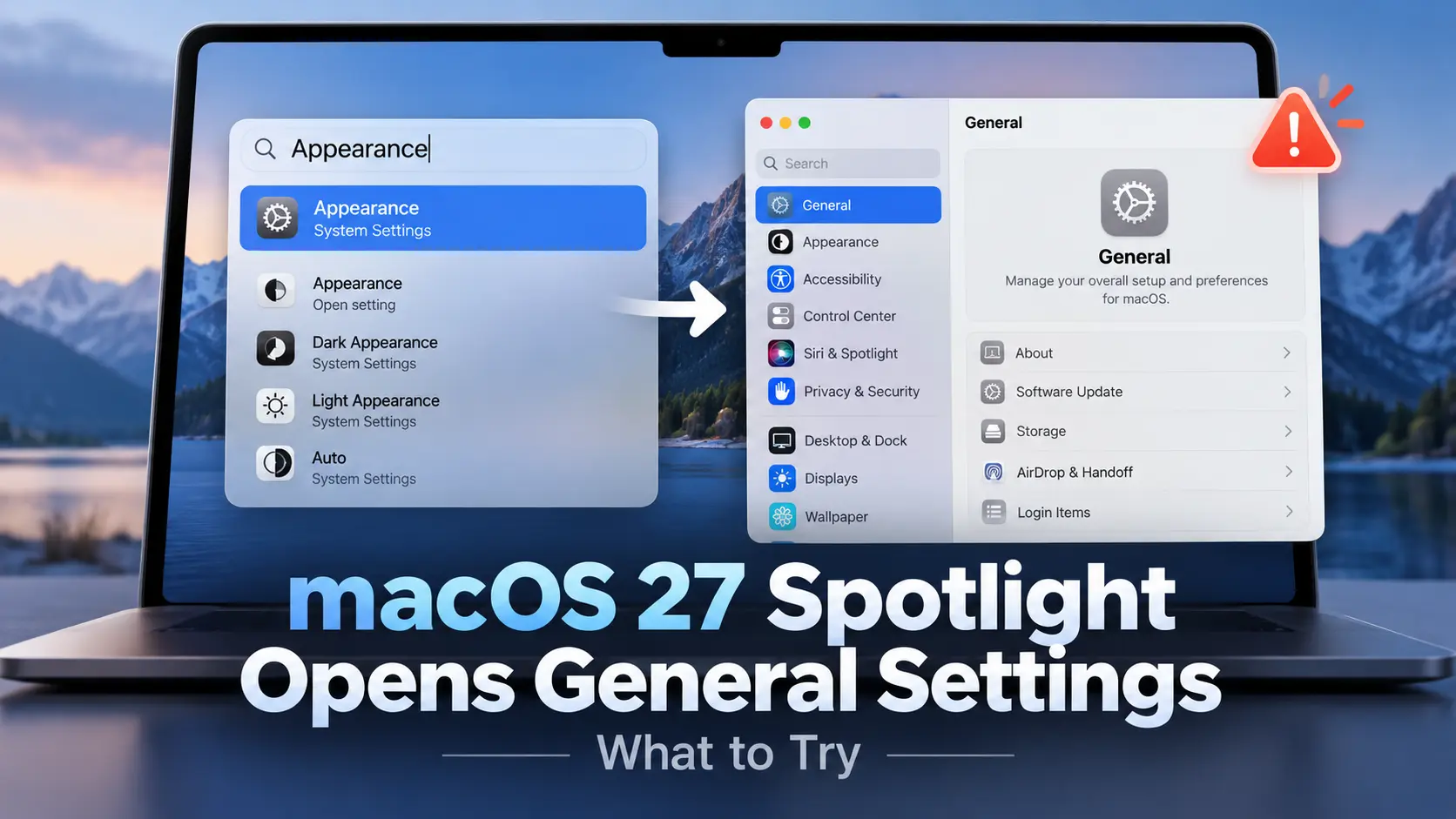
macOS 27 Spotlight Opens General Settings Instead of the Right Page? Here’s What to Try
Have you recently updated your Mac to macOS 27 Golden Gate and noticed that Spotlight is not opening the correct System Settings page?
For example, you press Command + Space, search for Battery, Keyboard, or Appearance, and click the result. Instead of taking you directly to that setting, your Mac opens the General section of System Settings.
The strange part is that Spotlight actually finds the setting you’re searching for. It just doesn’t open the correct page.
This issue has been reported by several Mac users since the macOS 27 update was released in September 2026. Some users have also noticed that the search bar inside System Settings doesn’t display any results.
If you’re facing the same problem, don’t worry. There are a few things worth checking before you consider anything drastic.
In this guide, I’ll explain what’s happening, how you can access your settings without Spotlight, and which troubleshooting methods are worth trying.
Contents
Why Is Spotlight Opening General Settings on macOS 27?
Normally, Spotlight allows you to search for individual macOS settings without manually navigating through the System Settings app.
Suppose you want to change your Mac’s appearance. You can press Command + Space, type Appearance, select the matching result, and jump directly to the Appearance settings.
However, on some Macs running macOS 27 Golden Gate, Spotlight displays the correct result but opens the General page instead.
This isn’t limited to one particular setting. Users have reported similar behavior while searching for:
- Appearance settings
- Keyboard settings
- Battery settings
- Display settings
- Other individual System Settings pages
The problem was mentioned in a macOS 27 discussion on Reddit, where an affected MacBook Pro user reported that searching for Appearance opened General instead.
Similar complaints have appeared from MacBook Air users, too.
So, it doesn’t seem to be a problem limited to one Mac model.
Is It a Spotlight Bug or a System Settings Bug?
Well, this is where things get a little confusing.
Spotlight can still display the correct setting in its search results. That suggests the search itself may be working, while the action that opens the selected Settings page is failing.
There’s also a related issue where the search field inside System Settings returns no results at all.
These two problems may appear together, but they aren’t necessarily the same.
For example, one user in a MacRumors forum discussion reported that Finder search worked normally while System Settings search remained broken. The user could also find Keyboard through Spotlight, but selecting it opened General.
Apple hasn’t published a specific explanation confirming the underlying cause of this behavior in the documentation I reviewed.
For now, the safest approach is to identify which part of search isn’t working and try the appropriate troubleshooting steps.
How to Fix macOS 27 Spotlight Opening General Settings
There isn’t a confirmed solution that works for everyone yet. However, the following checks can help you narrow down the problem and, in some cases, restore normal search behavior.
I recommend trying them in order.
1. Open the Required Setting Manually
First, here’s a simple workaround you can use immediately.
Instead of searching for a particular setting through Spotlight, open System Settings directly.
- Click the Apple menu in the upper-left corner of your screen.
- Select System Settings.
- Find the setting you need in the left sidebar.
- Click it to open the corresponding page.
For example, if you’re trying to change the appearance of your Mac, open System Settings and select Appearance from the sidebar.
Similarly, MacBook users can select Battery to access battery-related options.
You can also try the search box at the top of the System Settings window.
If the search box works, you can continue using it until Spotlight starts opening the correct pages again.
However, if the search box is also showing no results, move on to the next steps.
Note: This is a workaround, not a permanent fix for Spotlight. But it allows you to access your settings without changing anything else on your Mac.
2. Restart Your Mac
Before changing any advanced settings, try restarting your Mac.
Sometimes, a problem appears after installing a major macOS update and disappears following a restart.
To restart your Mac:
- Save any documents or other work.
- Click the Apple menu.
- Select Restart.
- Wait for your Mac to start again.
- Press Command + Space and search for Appearance or Keyboard.
Now check whether Spotlight opens the correct settings page.
There is some evidence that a restart can help with related problems.
For instance, a MacBook Air M4 user reported on Reddit that shutting down and restarting resolved the issue where the System Settings search field returned no results.
However, the same user continued experiencing the problem of Spotlight opening General instead of the requested setting.
So, restarting is worth trying, but don’t assume it will fix both issues.
3. Check for Available macOS Updates
If restarting doesn’t help, check whether Apple has released another update for your Mac.
Software updates can include bug fixes and other improvements, even when they don’t specifically mention every issue affecting users.
Follow these steps:
- Open System Settings.
- Select General from the sidebar.

- Click Software Update.
- Wait for your Mac to check for available updates.
- Install any compatible update you want to apply.
Make sure you’ve saved your work before installing an update.
It’s also a good idea to keep a current backup of your important files.
Now, does updating to macOS 27.0.1 solve the Spotlight problem?
Not necessarily.
In the MacRumors discussion mentioned earlier, a user reported on October 1, 2026, that updating to macOS 27.0.1 and rebuilding the Spotlight index didn’t resolve the issue.
That doesn’t mean future updates won’t help. It simply means you shouldn’t expect every macOS 27 update to fix this particular problem.
4. Check Whether System Settings Is Enabled in Spotlight
Your Mac allows you to control which types of information appear in Spotlight search results.
If you’re having trouble finding settings, it’s worth checking whether System Settings results are enabled.
Here’s how:
- Open System Settings.
- Select Spotlight from the sidebar.
- Look under the available search-result categories.
- Find the System Settings category, if listed.
- Make sure it’s enabled.
Apple explains these controls in its official Spotlight settings guide.
If System Settings was disabled, enabling it should allow those results to appear in Spotlight again.
If it’s already enabled, you can try switching the category off and back on, then searching again.
Keep in mind that toggling the category is only a troubleshooting attempt. It isn’t an Apple-confirmed solution for results opening the wrong Settings page.
In fact, if Spotlight is already displaying the correct setting, the category is probably not the main problem.
5. Check Whether Spotlight Is Still Indexing
Spotlight uses an index to find files, applications, messages, and other information stored on your Mac.
After a major macOS update, Spotlight may need to update or rebuild parts of this index.
According to Apple’s Spotlight indexing documentation, indexing can take hours or even days, depending on the amount of data stored on your device.
You can check whether indexing is still happening:
- Press Command + Space to open Spotlight.
- Look for an indexing progress indicator near the top of the Spotlight window.
- If indexing is in progress, allow it to finish.
Apple recommends keeping the Mac connected to power and allowing it time to complete the process.
You don’t need to leave Spotlight open while indexing continues.
Once it finishes, search for a setting again and see what happens.
But here’s something important.
If Spotlight already finds the correct System Settings result and only opens the wrong page, indexing may not be responsible.
Waiting for indexing to finish is a reasonable check, but it isn’t a guaranteed solution for this particular issue.
6. Rebuild the Spotlight Index if Search Results Are Missing
If Spotlight is also failing to find files, applications, or other information, rebuilding its index may be worth trying.
Apple provides an official method for doing this through Spotlight’s privacy settings.
You don’t need to install any third-party application or run complicated Terminal commands.
Follow these steps:
- Open System Settings.
- Select Spotlight.
- Scroll down and open Search Privacy or Spotlight Privacy.
- Add the disk or folder you want Spotlight to reindex. For a broader search problem, this may be your startup disk, such as Macintosh HD.
- Wait a few seconds.
- Select the disk or folder you just added and remove it from the privacy list.
- Click Done and close System Settings.
Spotlight will begin reindexing the selected location.
You can find the complete procedure in Apple’s official support article.
Depending on the number of files stored on your Mac, rebuilding the index might take some time. Search results may be incomplete during that process.
Should you rebuild the index just because Spotlight opens General Settings?
I wouldn’t make it the first option.
Reindexing is intended to address search and indexing problems. There is no reliable evidence that rebuilding the file index fixes the incorrect System Settings navigation issue.
Some affected macOS 27 users have already tried reindexing without success.
If your files and apps appear normally in Spotlight, you can skip this method rather than rebuilding the entire index unnecessarily.
7. Check Language Settings if System Settings Search Is Completely Blank
This next method is worth considering only if the search bar inside System Settings isn’t returning results.
In September 2026, a MacRumors forum user reported fixing that problem by removing a duplicate language entry from the Mac’s preferred languages.
Their Mac had two entries for the same language, one with a regional variant and another without it.
After removing the duplicate and restarting, search inside System Settings started working again.
However, other affected users tried changing language settings without success.
If you want to check whether you have the same situation:
- Open System Settings.
- Go to General > Language & Region.
- Look at the Preferred Languages list.
- Check whether you’ve accidentally added a duplicate of the same preferred language.
If everything looks normal, leave it alone.
If you find a duplicate, you can consider removing the unnecessary entry while keeping your intended primary language.
Don’t remove languages you actually use just to experiment.
Also, remember that this workaround was reported for the blank System Settings search problem. It has not been established as a fix for Spotlight opening General.
What if None of These Methods Work?
If you’ve tried the relevant steps and Spotlight still opens General, there’s no need to erase your Mac or reinstall macOS just for this issue.
The reports available so far don’t establish that such drastic measures are necessary or effective.
You can continue accessing the required settings manually while checking for future macOS updates.
It’s also worth sending Apple a report so its developers have details about the problem.
Visit Apple’s macOS feedback page and describe the behavior you’re experiencing.
Try to include:
- Your Mac model, such as MacBook Air M4 or MacBook Pro M5.
- Your installed macOS version, including the exact update number.
- The setting you’re searching for in Spotlight.
- Which page opens after selecting the result.
- Whether the search field inside System Settings works normally.
- Any troubleshooting methods you’ve already attempted.
The more specific you are, the easier it is to distinguish this problem from other Spotlight search issues.
You can also mention whether the problem started immediately after upgrading from macOS 26.
Frequently Asked Questions
Why does Spotlight open General instead of Appearance on macOS 27?
Some macOS 27 users report that Spotlight displays the correct Appearance result but opens General when they select it. The exact cause hasn’t been officially confirmed. It may involve how System Settings handles navigation from Spotlight search results.
Does macOS 27.0.1 fix the Spotlight settings issue?
Not for everyone. At least one affected user reported that updating to macOS 27.0.1 and rebuilding the Spotlight index did not fix the problem. You should still check for available updates, as later releases may address it.
Why is the search bar inside System Settings showing no results?
This is another issue reported after the macOS 27 update. Restarting helped one user, while another reported success after removing a duplicate preferred-language entry. Neither method is guaranteed to work on every Mac.
Will rebuilding Spotlight delete my files?
No. Following Apple’s supported reindexing procedure rebuilds search information for the selected location rather than deleting your personal files. Search results may be incomplete until indexing finishes.
Is this problem limited to Apple silicon MacBooks?
Reports have come from users with different Apple silicon MacBook models. The available reports don’t establish that a particular chip or Mac model is solely responsible.
Can I continue using my Mac if Spotlight opens the wrong Settings page?
Yes. This reported issue concerns searching for and opening particular settings pages. You can still open System Settings manually and navigate to the options you need.
Final Words
So, that’s what you can try if macOS 27 Spotlight keeps opening General Settings instead of the page you’re searching for.
Start with a restart, check for software updates, and make sure the System Settings category is enabled in Spotlight.
If you’re also having trouble finding files or apps, check whether Spotlight is indexing before considering a rebuild.
For now, the easiest workaround is simply to open the required page manually through System Settings.
I’ll recommend avoiding random Terminal commands, third-party cleaning tools, or reinstalling macOS for a problem that may be related to the operating system itself.
Hopefully, Apple will address the issue in a future update.
Meanwhile, if you’ve found a workaround that actually works on your Mac, feel free to share your macOS version and the method you used in the comments below. It may help other users facing the same problem.
More Mac guides from Social Apples: You can also learn how to stop Spotify from opening automatically on Mac, or check our guide on playing MKV videos on macOS.


